Home > Features
Handle your projects in a user-oriented interface designed for modern project management.
Tailor each project to your needs using stages, property fields, and tags, and set up priorities and color codes.
Customize your tasks by adding new fields with extra information.
Work on single or multiple projects at the same time. Perform multi-project analysis and searches.
Set automated actions to trigger changes based on user actions or a predefined frequency. Different automated actions are possible, such as creating or updating records, assigning tasks to specific users, sending emails or SMS, scheduling activities, …
Track projects and tasks easily on the move. Stay connected, always.
Tasks can be assigned in a structured hierarchy: Admin ➝ Team Leader ➝ Employee. This ensures clear responsibility at every level and seamless workflow management.
Admins have the flexibility to assign tasks directly to any employee when urgent or independent work needs to be handled without going through a team leader.
Once an employee marks a task as completed, it enters a two-step verification process. The Team Leader first verifies the task, followed by final approval from the Admin.
Break down large tasks into manageable subtasks. This helps organize work efficiently, allowing better progress tracking and clarity across all levels.
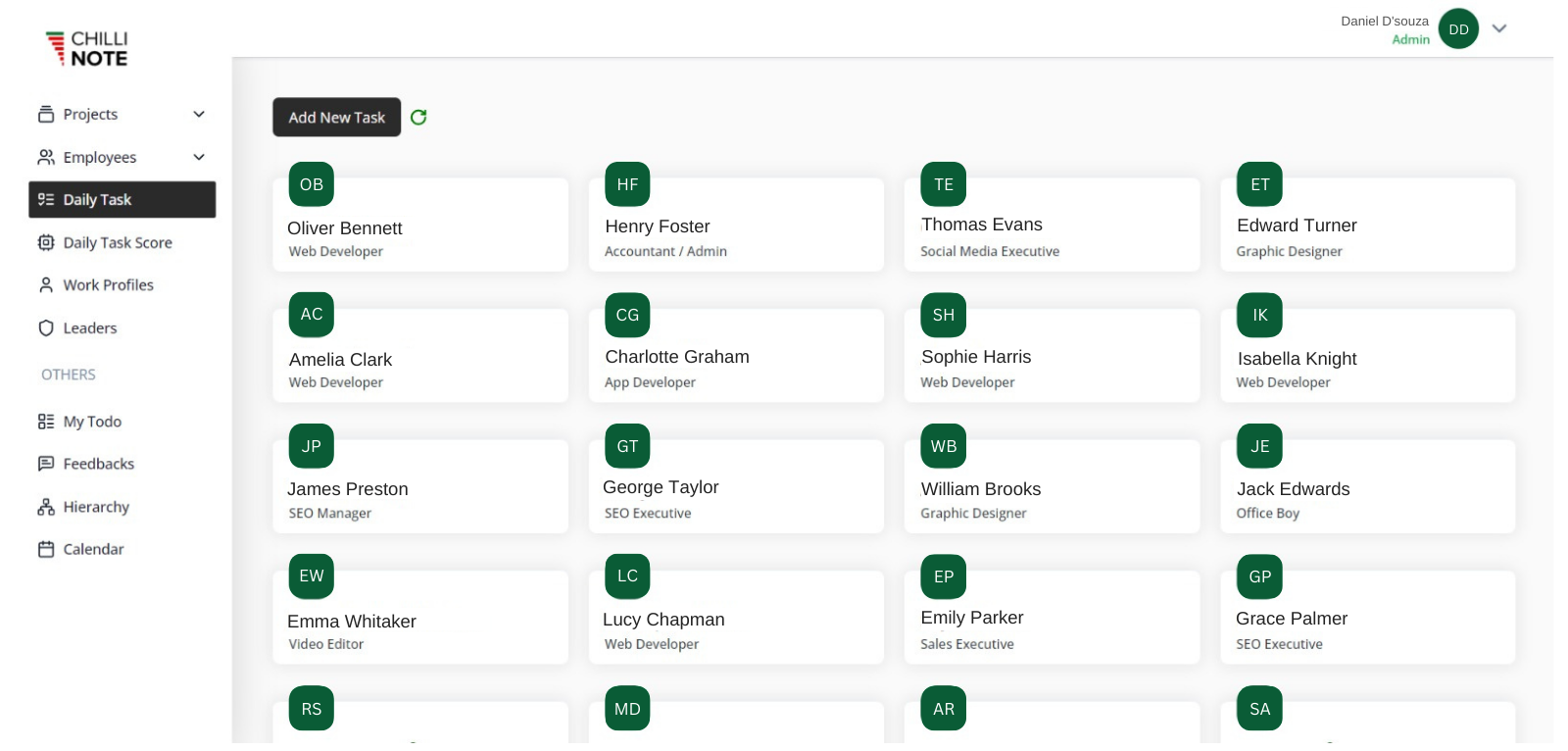
Assign a project to a dedicated head or leader to ensure clear responsibility for planning, coordination, and delivery. Ownership drives focus and direction.
Assign specific team members to a project. Only those assigned employees can be allocated to its modules and tasks, maintaining project boundaries and clarity.
Break projects into modules like Frontend, Backend, or Documentation. Assign team members to each module based on roles and expertise, promoting specialization.
Set project deadlines to define expectations and delivery dates. This helps with workload planning, progress tracking, and on-time delivery.
Integrated follow-up system enables quick check-ins and updates between project members and managers, like a chat or threaded comment system.
Modify project details like members, modules, deadlines, or ownership at any time. Adapts easily to evolving team structures or goals.
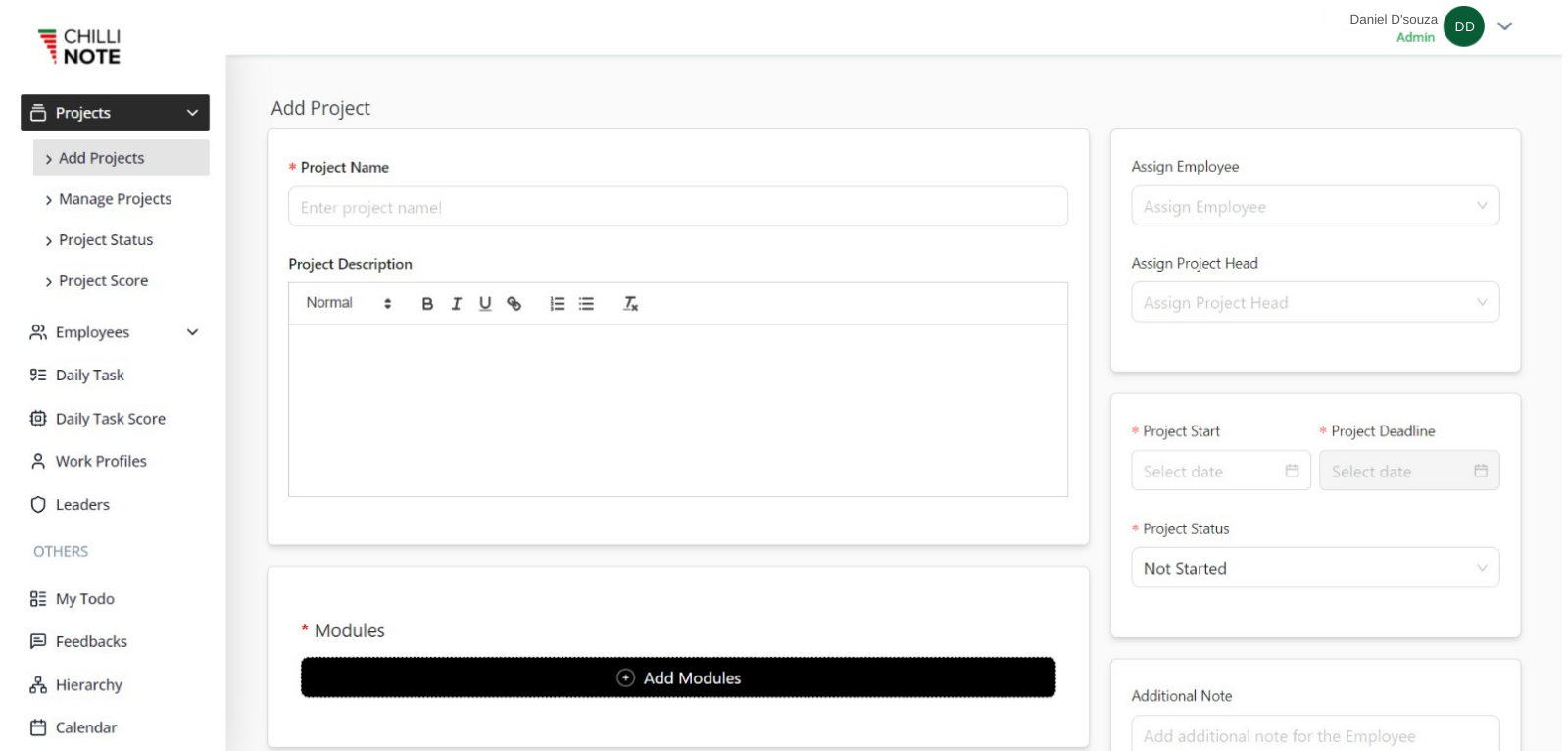
Easily assign tasks to team members and define their roles within the project. Set task priorities and deadlines to ensure timely delivery.
Track the status of tasks in real-time through visual tools like Kanban boards or Gantt charts. Monitor progress using completion percentages, timelines, and task status updates (To Do, In Progress, Done)
Get statistics on your tasks to analyze the performance of your projects.
Track the expected and effective hours to forecast future workload.
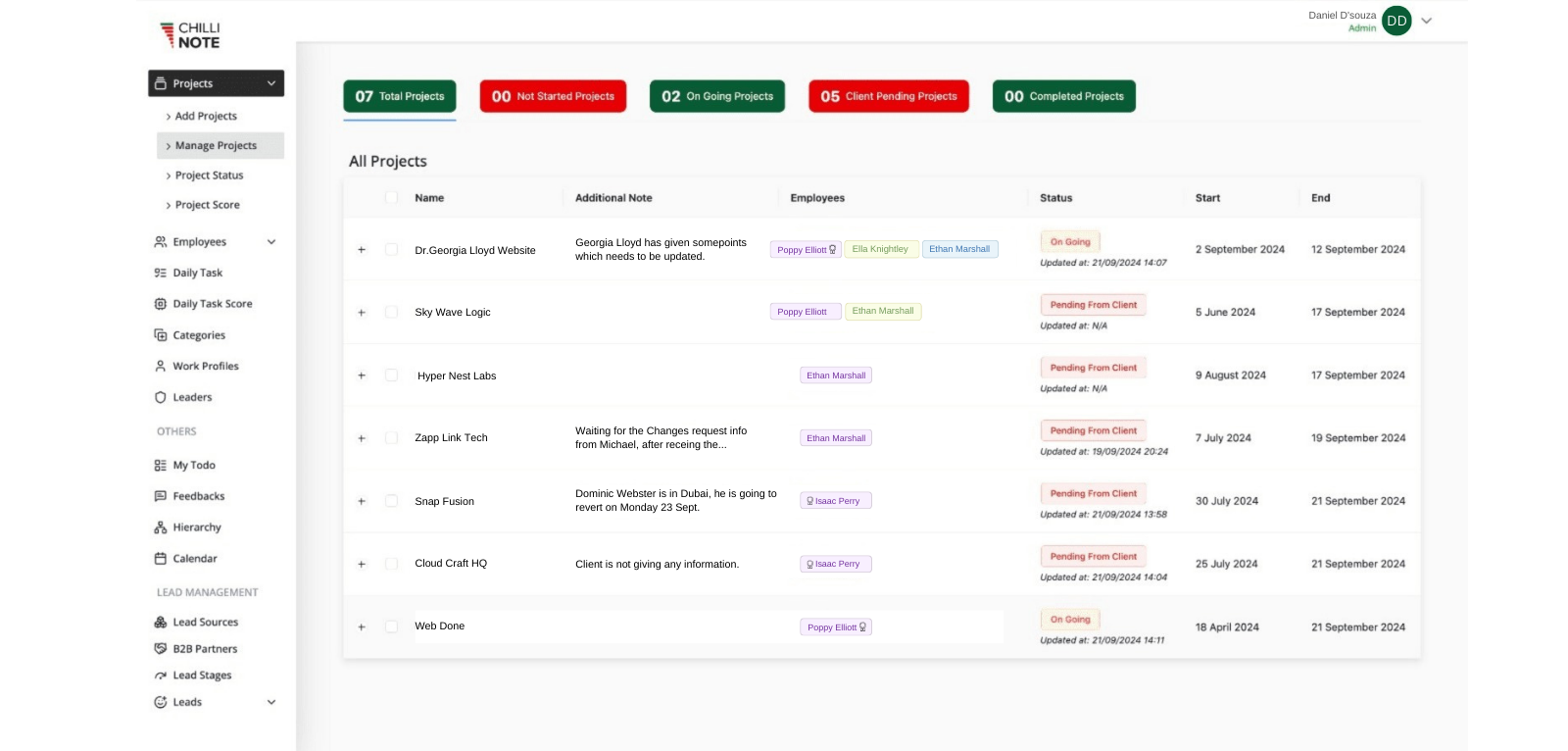
Set clear status labels such as Not Started, In Progress, Completed, or Cancelled & Total. These indicators give a quick snapshot of the project's current stage
Easily track the transition of projects from one status to another. Visual progress indicators show how far along the project is and highlight any potential bottlenecks.
Get notified whenever a project status changes. Team members can receive alerts on key status updates, ensuring that everyone stays informed on the project’s progress.
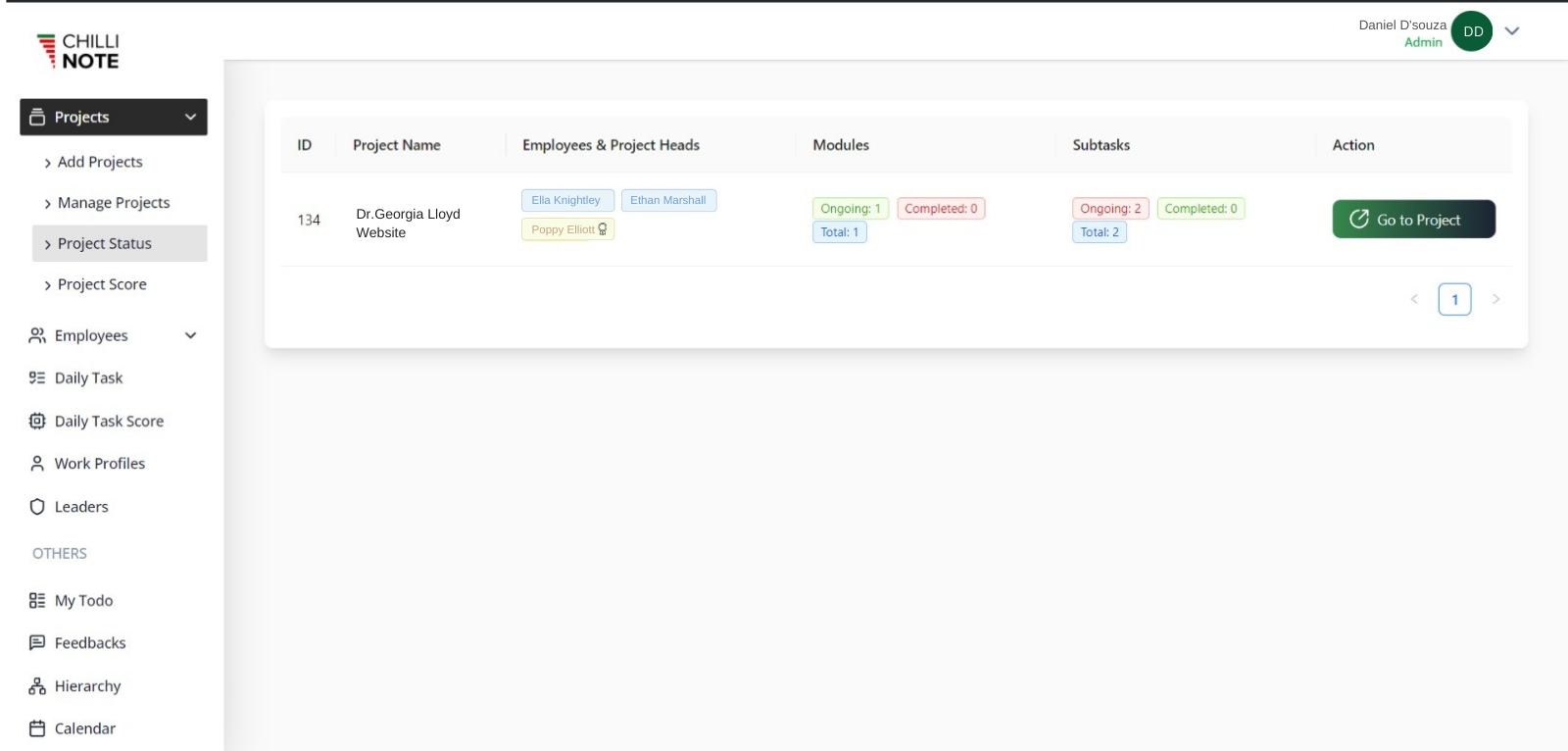
In the dashboard, locate the section dedicated to managing team members or employees. This might be labeled Team, Users, or Employee Management.
You may also have the option to immediately assign the employee to specific projects or tasks during this setup process.
Assign different roles such as Administrator, Project Manager, or Team Member.
Once you’ve filled in all necessary details, click Save or Add Employee. The employee will now be part of your ChilliNote team and can be assigned to projects.
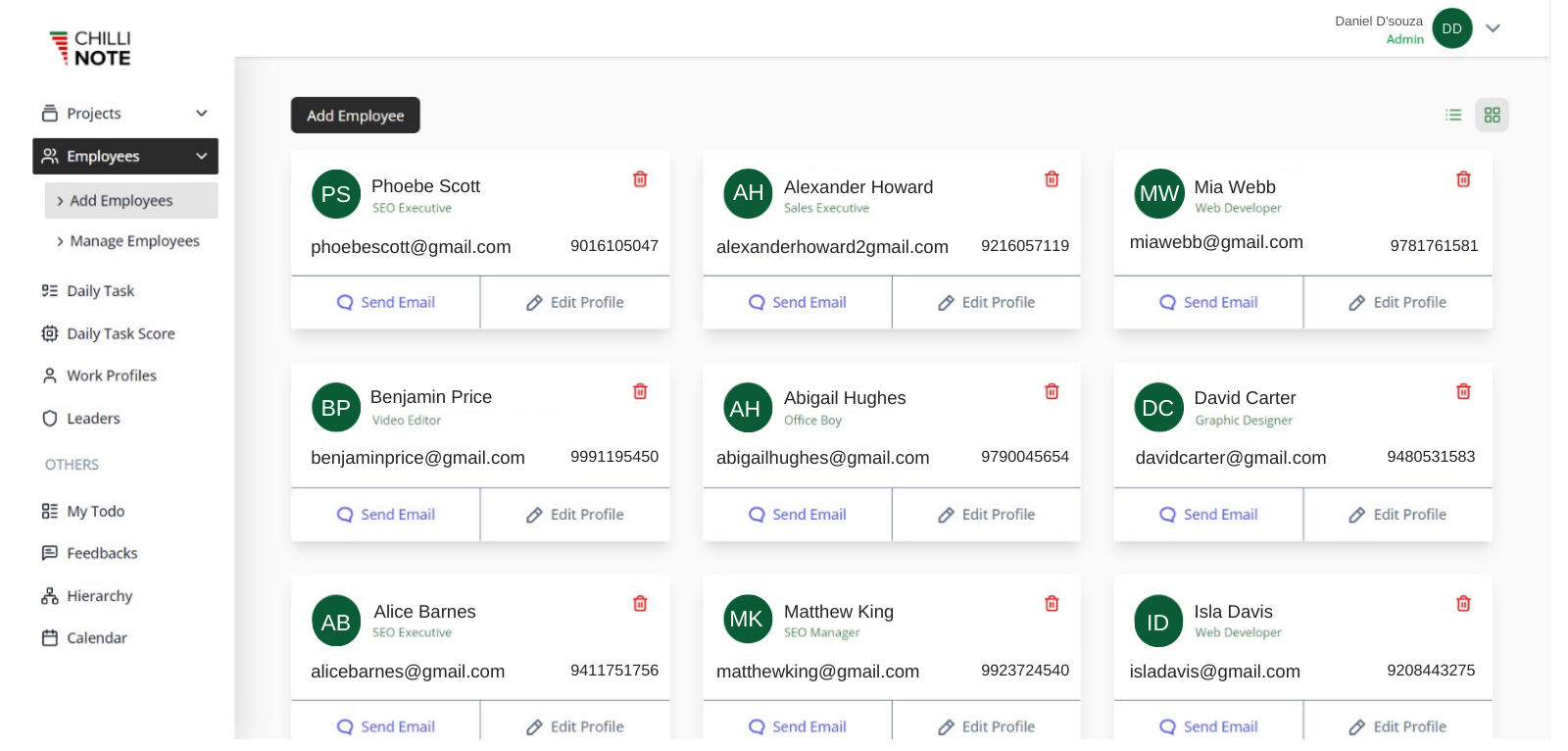
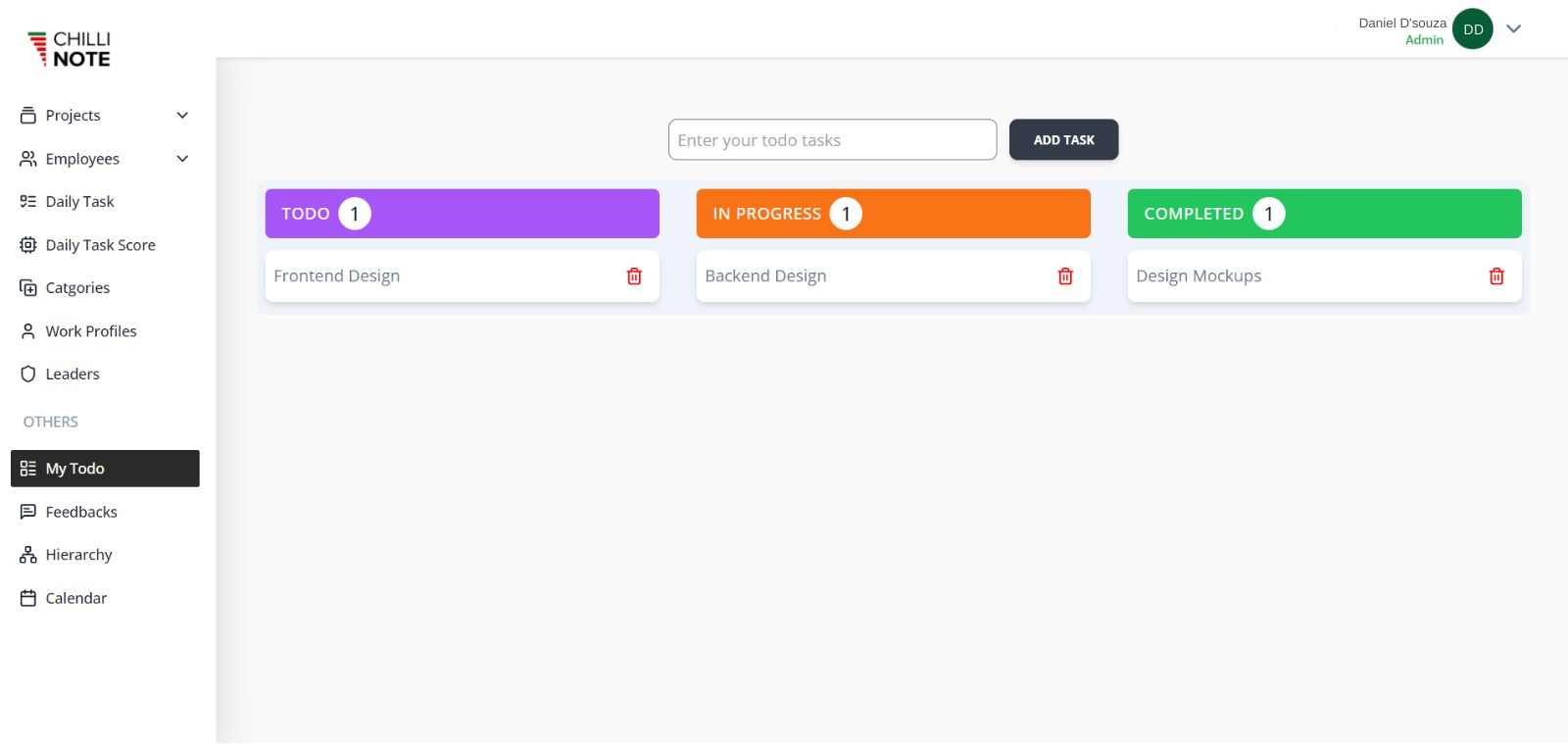
Allows you to input new employee details including name, email, and designation.
Click on an Edit button next to the employee’s name to update their information (e.g., name, email, designation).
Provides an option to remove an employee from the system. This action might require confirmation to prevent accidental deletions.
Allows you to view detailed information about the employee, including their history, roles, and projects they are involved in.
Lets you assign tasks or projects to employees. This can be done directly from the employee management view.
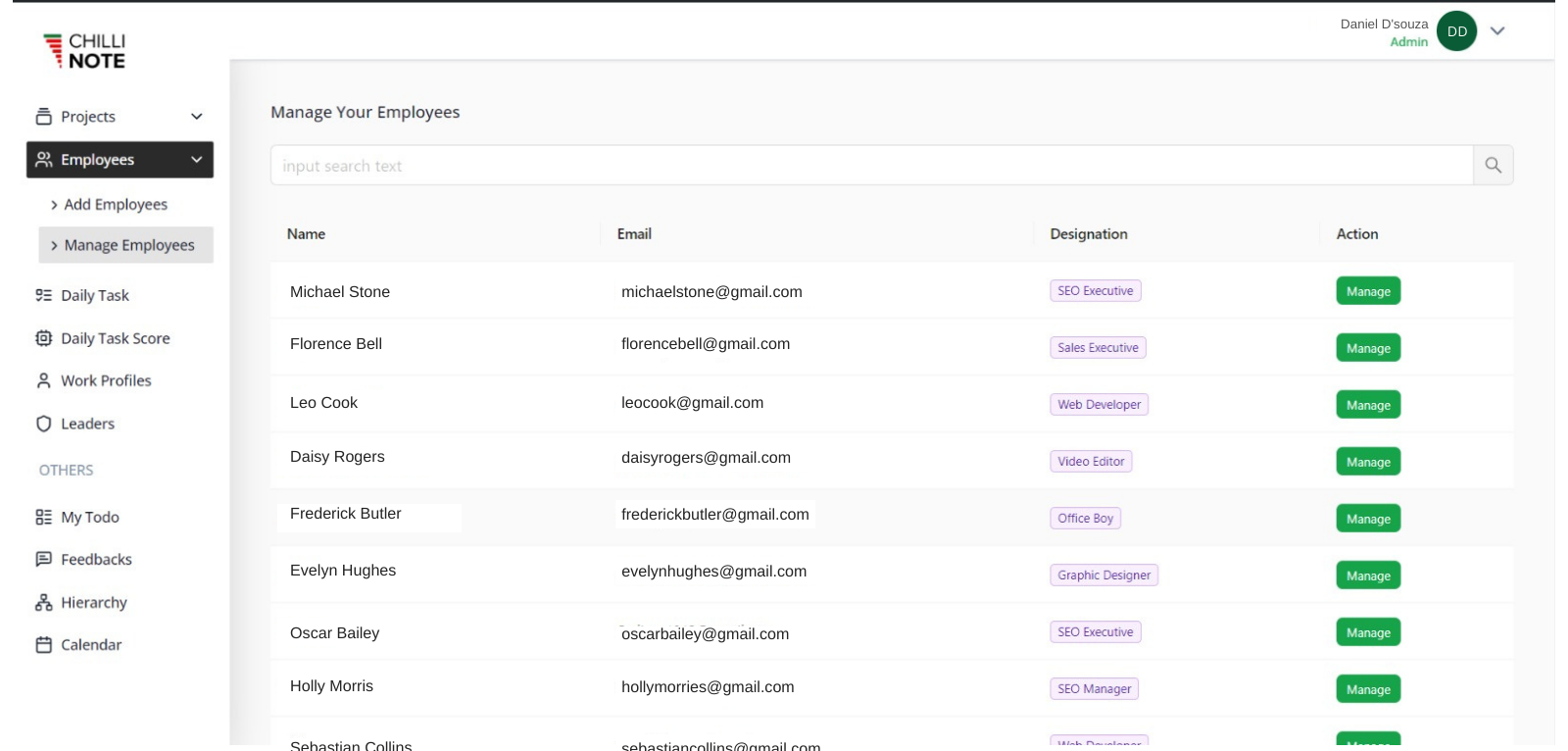
To provide users with a clear and actionable view of their daily task performance by categorizing tasks into completed and non-completed, and calculating an overall score based on these metrics.
The number of tasks successfully completed on a given day. Automatically updates as tasks are marked as completed. Provides a daily count of tasks that have been finished
The number of tasks that were not completed by the end of the day. Automatically updates to show tasks that remain unfinished. Helps identify tasks that need to be carried over to the next day or reassigned.
The total number of tasks scheduled for the day. Summarizes the total number of tasks set for completion, providing a benchmark against which to measure performance.
A calculated metric representing the user’s task completion performance. If tasks have different weights, the score can be calculated based on the weighted completion.
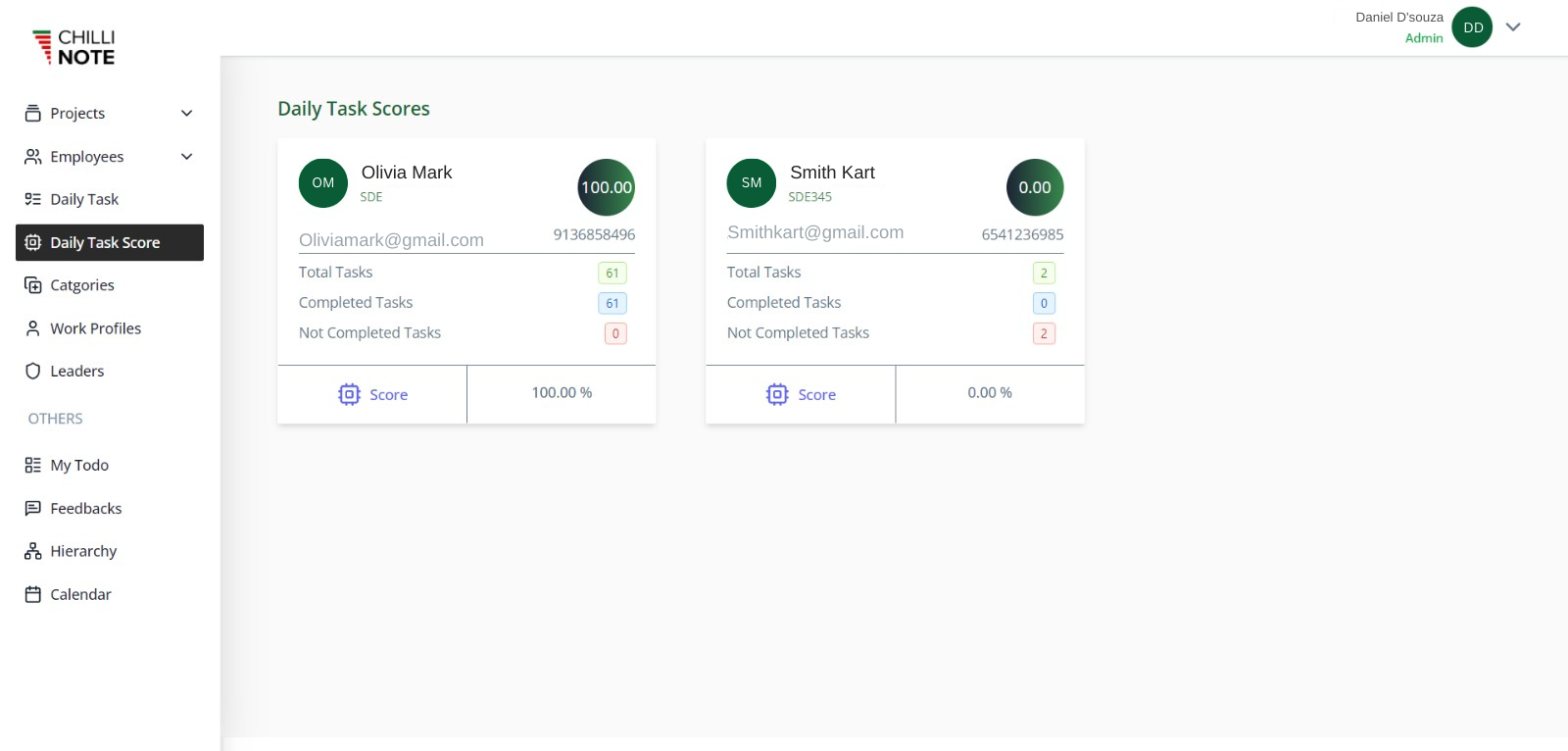
In ChilliNote, the Work Profile section allows you to manage and customize user profiles efficiently. The key actions available are View, Edit, and Delete. Here’s a brief overview of each feature
Each profile is associated with a unique identifier (ID) for easy reference and management. Displays the user's name as set in their profile.
The ID remains unchanged but is used to locate the profile. You can update the user's name along with other details.
The ID will be associated with the profile being deleted. The profile’s name will no longer be visible once the profile is deleted.
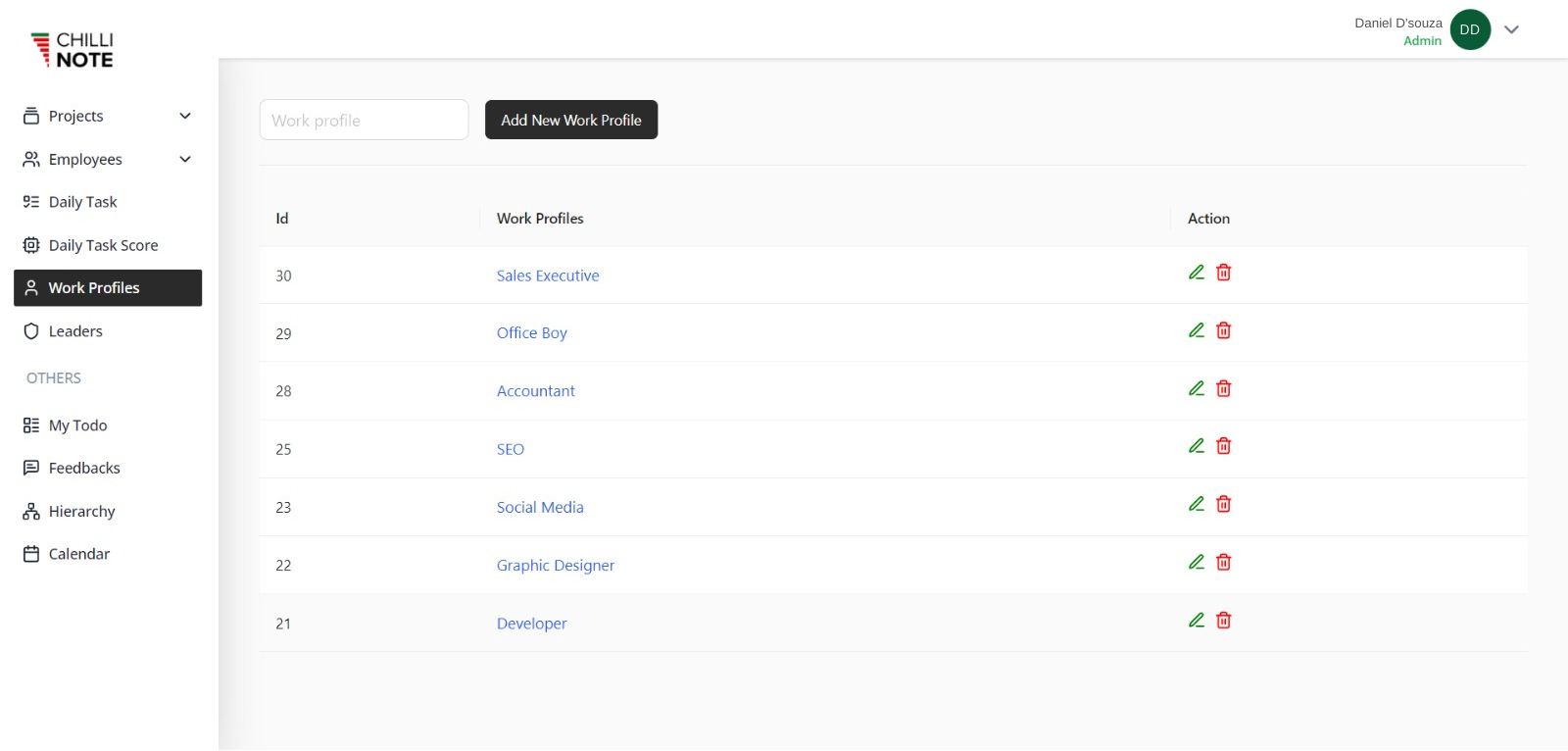
The To-Do List feature in ChilliNote helps you manage and track tasks efficiently by organizing them into three distinct categories: To Do, In Progress, and Completed. This feature allows teams to streamline their workflow, improve task management, and ensure that nothing falls through the cracks.
This list contains all tasks that need to be started. It serves as a backlog or queue of tasks waiting to be worked on.
Quickly add new tasks to the list with details such as task name, description, due date, and priority.
This list tracks tasks that are currently being worked on. It provides a visual indication of ongoing work and helps team members focus on active tasks.
This list contains tasks that have been finished and successfully completed. It provides a historical record of completed work and helps with progress tracking. Move tasks from In Progress to Completed once they are finished. This can be done manually or through automated workflows.
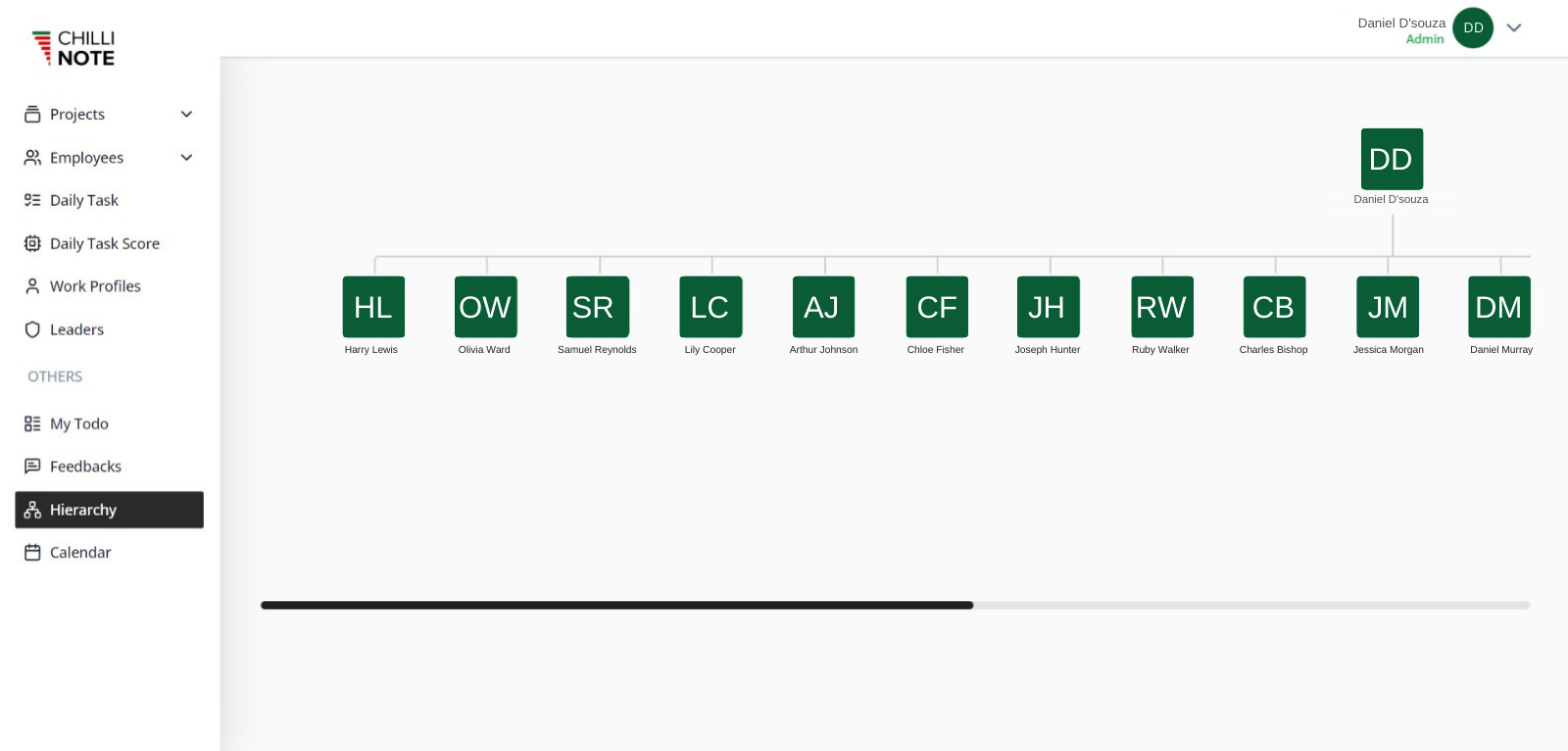
The Hierarchy Graph feature in ChilliNote provides a clear, visual representation of the organizational structure within a project or company. This feature allows users to understand the roles and responsibilities of different team members by displaying the relationships between key roles such as Admin, Team Leader, and Employee.
Role Overview: The Admin sits at the top of the hierarchy and has full control over the system. Admins can manage projects, assign roles, configure permissions, and oversee all activities within ChilliNote.
Role Overview: The Team Leader acts as the manager of a specific team within a project. They are responsible for assigning tasks, managing the progress of their team members, and reporting to the Admin.
Role Overview: Employees are responsible for executing tasks assigned by their Team Leader. They focus on completing their assigned work within deadlines and contributing to the overall success of the project.
Each level (Admin, Team Leader, Employee) has specific permissions and access rights, ensuring a clear division of responsibilities.
The hierarchy graph updates in real-time as roles change, new teams are created, or projects evolve.
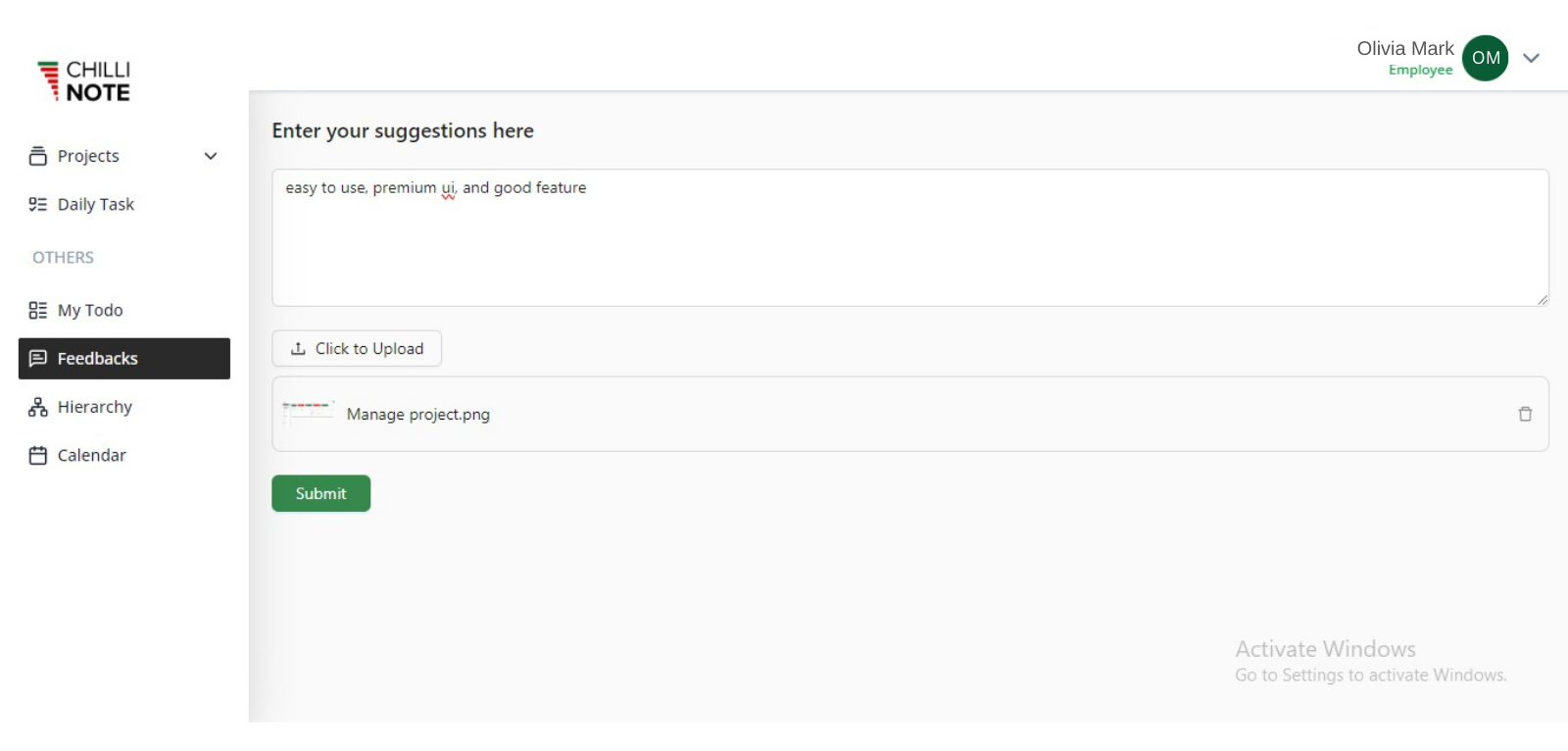
The Feedback feature in ChilliNote allows users to provide detailed feedback on tasks, projects, or any aspect of the system, with the added capability to upload images. This helps in enhancing communication, clarifying issues, and sharing visual context for more effective resolution.
Allows users to submit feedback on tasks, projects, or general system use. This can include suggestions, comments, issues, or requests for support.
Access a form or dialogue box where users can enter their feedback. This may include fields for feedback type (e.g., suggestion, bug report), description, and urgency level.
Enables users to attach images to their feedback to provide visual context, such as screenshots of issues, design mockups, or example scenarios.
Keep users informed about the status of their feedback. Send a confirmation message or email to the user upon successful submission of feedback.